9 Homeschool Technology Essentials for Smarter Learning in 2026

Most homeschool parents do not struggle with the decision to homeschool. They struggle with what comes after it.
Which tools are actually worth using? What helps your child learn versus what just adds another screen to the day? And how do you stay organized without spending more time managing platforms than you do teaching?
These questions come up constantly, and most homeschool technology conversations skip right past them.
This guide does not. Below is a practical look at what homeschool technology actually looks like in 2026, what you can use, when it helps, and how to build a day where learning leads, and screens follow.
Key Takeaways
Homeschool technology in 2026 includes tools such as laptops, printers, Khan Academy, Libby, Google Docs, and AI tools to support planning and learning.
Most families use a small set of tools, such as Khan Academy for math, Libby for reading, and Google Docs for planning, rather than relying on multiple platforms.
Subject-specific tools like Prodigy, Duolingo, Scratch, and PhET are best used for practice and reinforcement, not as the primary means of instruction.
AI tools like ChatGPT can help parents plan lessons, organize schedules, and track progress, but should not be used by children to complete their work.
A structured, hands-on routine reduces the need for excessive screen-based tools and keeps technology limited to short, purposeful use.
Do You Really Need Technology for Homeschooling?
No. And that is worth saying clearly.
You can run a full, rich homeschool without a single app or platform. Many families do, and their children thrive. Hands-on learning, good books, real conversations, and parent-led instruction have always been the foundation of great homeschooling.
That said, the right technology used with a clear purpose does reduce your load as a parent or educator. It helps you plan your week, track your child's progress, find resources faster, and stay connected to a support community.
The problem most families run into is not too little technology. It is too much of the wrong kind, used without intention. The families getting the most from technology are not using the most tools. They are using a small number of well-chosen ones, each with a specific job.
Homeschool Technology and Tools You Can Use in 2026 (and When It Helps)
Not every tool is necessary. Most families running strong homeschools use a handful of tools with a clear purpose. The goal is always to support learning, not replace it.
Here is a breakdown of each category, what it actually does for you, and the specific tools families are using in 2026.
1. Core Devices and Setup
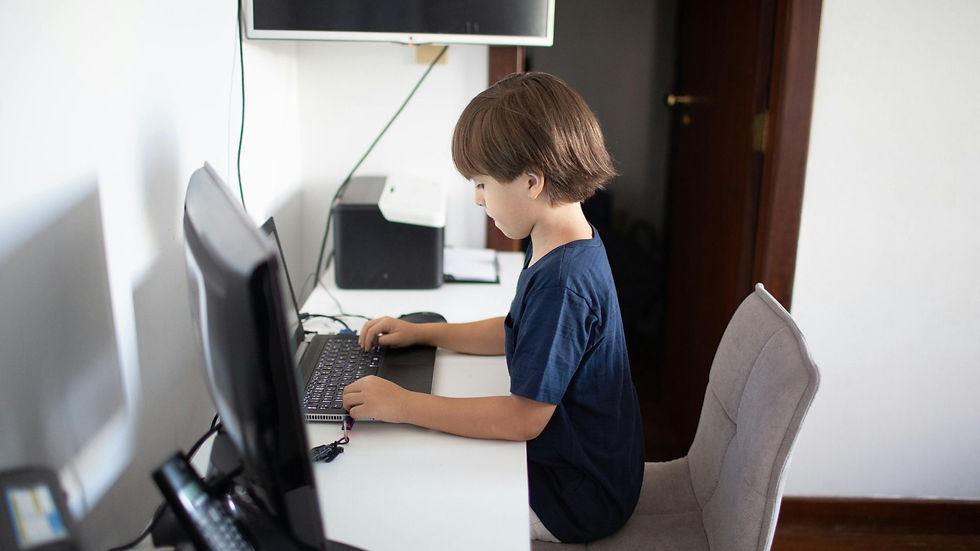
This is your foundation. The right devices give you access to everything else on this list without overcomplicating your day or your budget.
Laptop or desktop: Handles your lesson planning, research, video content, and documentation. A mid-range Chromebook or Windows laptop handles everything most homeschool families need without breaking the budget.
Tablet (iPad or Amazon Fire Kids): Useful for older children doing independent reading or research. For younger children, supervised use with intentional content is the rule, not the exception.
Printer: One of the most valuable tools in your homeschool. Printable materials and activity sheets keep children engaged, especially young ones, without adding to daily screen time. A basic inkjet, such as the Canon PIXMA series, handles most homeschool printing needs affordably.
Mobile hotspot (T-Mobile or Verizon): If your family travels or moves frequently, a mobile hotspot gives you the flexibility that a fixed home connection cannot.
2. Learning Platforms
These platforms give your child structured, self-paced content across core subjects. They work best as a supplement to your curriculum, filling gaps and reinforcing what you have already taught. They are not a replacement for direct instruction.
Khan Academy: Free, self-paced, and covers math, science, and more from grades K through 12. Particularly strong for math in grades 3 and up. Many families use it for reinforcement three to four times a week alongside their main program.
Epic!: A digital library with over 40,000 books for children up to age 12. Gives your child access to a wide range of reading material without building a large physical library. Many public libraries offer free access through your library card.
Starfall: Works well for Pre-K and kindergarten reading and phonics. Simple, low-stimulation, and built for young learners.
Mystery Science: Ready-to-use science lessons built around hands-on activities. A solid option if you want structured science without having to build it from scratch.
Use these platforms to support and reinforce, not to lead. When a platform is doing all the teaching, that is a signal to pull back and reassess.
3. Subject-Specific Tools
Different subjects benefit from technology in different ways. These tools help you go deeper in specific areas without turning the whole day into screen time.
Math and early numeracy
Hands-on first, always. Physical manipulatives build number sense far better than any app for children under 8. Digital tools follow once concepts are understood through real experience.
Prodigy Math: A game-based math platform for grades 1 through 8. Children engage through a role-playing format, which helps maintain motivation for independent practice.
Desmos: A free graphing and activity tool suited for older learners in grades 5 and up, exploring more complex math concepts.
Reading and language
Physical books and read-alouds anchor reading at every age. No tool replaces these.
Libby (by OverDrive): Connects to your public library card and gives free access to thousands of ebooks and audiobooks. One of the most underused free tools available to homeschool families.
Duolingo: Works for language learning in older children (ages 8 and up), ready for structured daily practice. Use it as a 5- to 10-minute supplement, not a full language curriculum.
Science
Observations, experiments, and outdoor exploration anchor science in your homeschool. These tools extend what your child cannot directly observe at home.
PhET Interactive Simulations (University of Colorado Boulder): Free virtual science simulations covering physics, chemistry, biology, and earth science.
NASA Educator Resources and Smithsonian Learning Lab: Both offer free, high-quality science content and activity guides that pair well with hands-on experiments.
STEM for older learners (ages 10 and up)
Scratch (MIT): Teaches coding through creative project building. Children create animations, games, and stories using visual coding blocks. Free and safe.
Code.org: Structured coding courses from grades K through 12. Free and widely used by homeschool families as an introduction to computational thinking.
Note: Subject-specific tools are best for reinforcement and exposure. They fill gaps and add depth. They are not your lesson plan.
4. Planning and Organization Tools

This is the category that gives you back the most time as a parent. These tools manage the administrative side of your homeschool so you can stay focused on teaching.
Google Docs and Google Sheets: Handle lesson plans, weekly schedules, reading lists, and progress notes for most families. Free, accessible from any device, and flexible enough to build whatever system works for you.
Notion: An all-in-one workspace for parents who want something more visual. Build a lesson planner, reading tracker, and resource library in one place. The free plan covers most homeschool needs.
Homeschool Planet: A dedicated planner with a lesson scheduler, grade book, attendance tracker, and transcript builder. A strong option for families managing multiple children or formal state record-keeping requirements.
Transparent Classroom: A portfolio management tool used widely in progressive and microschool settings. Document your child's work with photos and observations, and easily share progress updates. Especially useful in states with portfolio-based review requirements.
Note: These tools manage learning. They do not deliver it. Keeping that distinction clear is what makes them useful.
5. AI Tools for Parents and Educators
AI is the most significant shift in homeschool technology in recent years. A 2025 survey found that 56% of parents believe their children are already using generative AI tools, and 8 in 10 parents want clearer boundaries around how AI is used for learning. That tension is real, and it starts with being clear about who AI is for in your homeschool.
Used correctly, AI helps you teach better. It is not a tool for your child to complete their work.
How AI helps you as a parent or educator:
Lesson planning: Describe a topic, grade level, and learning goal. Get a structured draft to work from. You adjust it. You do not start from scratch.
Differentiating for multiple children: AI quickly generates activity variations at varying levels of complexity, making it practical for families with children at different stages.
Research summaries: AI condenses complex topics into plain language, helping you explain a subject confidently even outside your area of expertise.
Communication drafts: For microschool educators managing parent relationships, AI significantly speeds up newsletters, progress updates, and routine correspondence.
Tools to use:
ChatGPT (OpenAI) and Claude (Anthropic): Both are used by homeschool parents to generate lesson ideas, create activity variations, and draft weekly schedules. Both have free tiers.
Khanmigo (Khan Academy): An AI tutor built to guide children toward answers rather than give them directly. It is one of the safer AI tools available if you allow your child to use AI at all.
What AI should never do in your homeschool:
AI should not complete your child's assignments, answer their questions for them, or replace the thinking they need to do themselves. The purpose of AI in homeschooling is to support you, the adult doing the teaching.
Note: Using AI to generate three hands-on activity ideas for your child's current science unit is a strong use of the technology. Letting your child use AI to summarize their reading and copy it into their notebook is not.
6. Media and Enrichment Tools
Educational videos and documentaries introduce a topic in ways that spark genuine curiosity, especially for visual learners. They work best as an opening to a lesson, not a substitute for one.
YouTube (curated channels): SciShow Kids, TED-Ed, and Crash Course offer free, high-quality content across subjects. Set up a supervised playlist rather than leaving your child to browse independently.
CuriosityStream: A paid streaming platform focused on documentaries covering science, history, and nature. A family subscription runs around $4 per month.
PBS LearningMedia: Free educator-aligned video content with companion activities and discussion questions built in.
7. Communication and Community Tools
Homeschooling can feel isolating, especially in the early years. Technology that keeps you connected to other parents and educators is genuinely worth using.
Zoom: The standard for live group learning in homeschool communities. Use it for tutors, co-op groups, and virtual classes.
Marco Polo: A video messaging app that many homeschool families use to keep children connected with friends and family in other states or countries.
Facebook Groups and Reddit (r/homeschool): Active communities where parents share practical advice and real-world experience. Good for honest answers from families who have been through exactly what you are navigating.
Use these for genuine connection, not passive scrolling. They are most helpful when you have a specific question or challenge to work through.
8. Low-Screen and Hands-On Alternatives
Technology does not have to mean more screen time. Some of the most effective learning tools in your homeschool involve no screen at all, and for young children especially, these are often the better option.
Libby and Audible for audiobooks: Libby is free through your public library. Audiobooks build vocabulary, listening comprehension, and a love of stories with zero screen time. They work in the car, during lunch, and during quiet time.
Brains On!, Circle Round, and Wow in the World: Educational podcasts for children covering science, storytelling, and current events. Genuinely engaging with no screen required.
Teachers Pay Teachers (TpT): A marketplace for printable materials and worksheets across every subject and grade level. High-quality printables for a few dollars or free.
KiwiCo and MEL Science: Subscription-based hands-on learning kits for science and STEM projects. Physical materials with guided activity cards. No screen required.
Osmo: Bridges physical and digital by pairing real physical pieces with a tablet to teach math, reading, and creative thinking. Keeps young children actively doing rather than passively watching.
9. Advanced Tools (Optional, Not Essential)
If your core structure and curriculum are already working well, these tools offer ways to extend your child's learning in specific directions.
Scratch and Codecademy: Scratch works best for coding at ages 8 to 12. Python and web development courses on Codecademy are suitable for ages 13 and up who are ready for text-based programming.
Google Expeditions and CoSpaces Edu: VR and AR tools that offer immersive experiences for geography, history, and biology. Add engagement for specific topics, but require a clear purpose to justify the screen time.
Tinkercad: A free browser-based 3D design tool. Students design objects that can be printed on a 3D printer, connecting design thinking to physical creation in ways that motivate most children.
If you are looking for a program that puts hands-on, non-screen learning at the center while giving you the planning tools, printable materials, and live educator support you need, The School House Anywhere (TSHA) was built for this. Powered by the American Emergent Curriculum (AEC), TSHA gives you structured 6-week learning sessions, custom printable materials, Transparent Classroom portfolio tracking, and live educator gatherings, all in one place. So you spend less time building your program and more time actually teaching.
How to Find the Right Balance With Homeschool Technology?

There is no fixed rule for using technology in homeschooling. What matters is using it in a way that supports learning without letting it take over your child’s day.
Here’s how you can approach it:
Focus on core learning first
Make sure foundational skills happen offline before introducing any technology.
Reading, writing, and math should begin with books, discussion, and hands-on practice.
Use real-world activities like cooking, building, or storytelling to reinforce concepts.
Treat technology as an add-on, not the starting point.
Use technology for specific purposes
Avoid using screens by default. Decide why you are using a tool.
Use videos or platforms to explain difficult topics.
Use digital tools for research or exploration.
Use apps only when they clearly support learning goals.
Set clear time boundaries
Without limits, screen time can easily take over the day.
Keep technology use short and structured.
Avoid long, continuous screen sessions.
Balance every tech-based activity with offline work.
Adjust based on your child’s age
Younger children need far less technology than older ones.
Ages 3–6: Minimal to no screen time.
Ages 7–10: Limited and guided use.
Ages 11+: More independence, but still structured.
Balance screen-based and hands-on activities
Children learn best when they are actively involved.
Pair videos with related hands-on projects.
Follow digital lessons with discussion or practice.
Encourage creativity through drawing, building, or writing.
Keep technology in a supporting role
Technology should assist you, not replace teaching.
Use tools to organize, plan, or track progress.
Avoid relying on platforms to teach everything.
Stay actively involved in your child’s learning.
A Simple Daily Homeschool Routine With Balanced Technology Use
Families who use technology well do not structure their day around it. They structure their day around learning, and technology fills specific, limited windows within that structure.
Here is what a balanced homeschool day looks like for a child aged 7 to 10:
Time | Activity | Technology Role |
8:00 – 8:30 | Morning routine, journaling, or read-aloud | None |
8:30 – 9:30 | Core literacy: reading, writing, phonics | None |
9:30 – 10:30 | Math (manipulatives, practice, hands-on games) | Optional platform, 15–20 min max |
10:30 – 10:45 | Movement break | None |
10:45 – 11:45 | Science or history (projects, reading) | Short video intro if relevant, 10–15 min |
11:45 – 12:30 | Lunch and outdoor time | None |
12:30 – 1:15 | Arts, life skills, or project work | None |
1:15 – 2:00 | Independent reading or audiobook time | Audiobook if preferred |
2:00 – 2:15 | Reflection and close | None |
Note: Adjust block lengths for younger children. Pre-K and kindergarten students work best in 15 to 20-minute blocks with frequent movement breaks. Screens appear in two short windows and only when they serve the learning already happening around them.
Also Read: Addressing AI Bias and Equity in Education
How Structured, Hands-On Learning Reduces Screen Dependence?

One of the most consistent patterns in homeschooling is that children who have a structured, engaging day rarely push back on screen limits. When children are bored, uncertain about what comes next, or under-stimulated, screens fill that gap almost automatically.
A 2025 Pew Research survey found that 86% of US parents have rules around screen use, but only 1 in 5 say they stick to those rules all the time. The families who find balance are usually the ones who have replaced passive screen time with something genuinely engaging, not just removed it.
A curriculum built around real projects, storytelling, physical making, and meaningful conversation gives your child something worth doing. That structure is the most effective screen-time strategy available, and it does not require willpower or constant enforcement. It requires a good plan.
This is exactly what the American Emergent Curriculum (AEC), the framework behind The School House Anywhere (TSHA) homeschool and microschool program, is built around. Learning that is hands-on, deeply connected across subjects, and genuinely engaging for children from Pre-K through 6th grade. When your child is building, creating, investigating, and discussing, the screen stays closed automatically.
Here is what sets TSHA apart from a typical curriculum platform:
Secular and inclusive: The AEC is fully secular and works for families from all backgrounds, without the need to modify or filter content.
Connected learning across subjects: Lessons bring multiple subjects together instead of teaching them in isolation. A single unit may combine science, storytelling, art, and math within one six-week session.
Designed for mixed-age learning: Whether you are teaching one child or a small group of different ages, the curriculum supports a range of developmental stages in the same environment.
Easy to use anywhere: The curriculum is built around printable materials, so it works without relying on constant internet access or a fixed location.
AI tools for parents, not students: TSHA includes AI-based tools to help you plan lessons, stay organized, and track progress. These tools support your role as the educator, rather than replacing how your child learns.
Conclusion
Homeschool technology works best when it solves a specific problem for you, the parent or educator, and stays out of the way of your child's actual learning.
The tools worth using are the ones you will realistically reach for every week, that reduce friction in your routine, and that keep real, hands-on learning at the center. The tools not worth using are those that quietly add more screen time without increasing understanding.
Start with your biggest pain point. Add one tool that addresses it. Build from there.
Your child does not need more technology. They need you, well-supported, with a clear plan, and the space to actually teach.
FAQs
1. How do I introduce technology into homeschooling without overwhelming my child?
Start with one tool in a specific subject, such as math or reading. Introduce it gradually and observe how your child responds before adding anything else.
2. Should every subject in homeschooling use technology?
No, most subjects do not need technology. Reading, writing, and early math are more effective offline, while technology can support research and advanced topics.
3. How can I tell if my child is becoming too dependent on screens?
If your child resists offline work, struggles to focus without devices, or prefers passive content over active learning, it may be a sign of overdependence.
4. Is it better to use free tools or paid homeschool technology platforms?
Both can work well. Free tools like Libby or Khan Academy cover many needs, while paid platforms may save time if you need more structure.
5. How often should I review or change the technology I am using?
Review your tools every few months to see what is actually being used. Remove anything that adds complexity without improving your child’s learning experience.


Comments